
Considering Deploying Microsoft365 for Your Entire Organization? Success is in the details.

Technology is ever advancing, and even the smallest of businesses must keep in step to remain competitive. Efficiency is the key to modern, effective operations, yet keeping teams aligned and working towards the common goal can be tougher than ever when members are remote working. Microsoft solutions can help the business increase productivity and modernize their operations, and at the same time provide stronger security and enhanced protection.

For just about every business, it makes sense to consider using Microsoft 365 services. But there are a lot to choose from, and not all services work as you might expect, so here is a little information that might help with making service selection a little easier.

Does it make sense to implement Microsoft Teams for intra-company calls, meetings, and collaboration?

Teams is great for calling your co-workers, sharing screens, presenting content, and collaborating in workgroups or with the whole company. But be warned that Teams meetings don’t work for everyone, particularly those outside your organization or for users that don’t have useful Internet connectivity.

  • To use Teams with people outside the company, or even for users that don’t have Internet connectivity, you’ll need to also have a calling plan for each user.
  • A calling plan allows Teams to connect a phone number to the Teams meeting, creating a means for non-Teams users and those without internet to connect to the meeting audio.

Should you migrate employee email inboxes to MS365 (Outlook Desktop and/or Outlook Online)?

Using Microsoft for email services make a ton of sense, especially with the advanced phishing and threat protection that comes standard with the service. It is pretty much foolproof for most businesses and is a great value. If your business is migrating to Microsoft from a legacy email platform or from a different mail provider, there are a few things to consider.

  • Many companies use their desktop Outlook email folders as a sort of file cabinet, storing and categorizing emails for future use. In older MS Exchange environments, Public Folders were also used, enabling company-wide access to certain email folders and the file attachments within.
  • MS365/Office365 email services don’t support public folders, and every email box comes with a storage quota. If the business is used to saving lots of emails, then it might create difficulties with mailbox management.
  • Outlook Desktop still has limitations on the file size it can reasonably handle. This means that Outlook, when connected to hosted Exchange mail (Microsoft365), should run in cached mode, keeping only recent data in the Outlook file on the computer and leaving the rest of the mail on the server. Mail on the server is still available for search by Outlook; the program will simply search in the local data file first.

Can you, or should you, migrate your company’s files to the Microsoft cloud?

Keeping your files on the “cloud” is a concept that sounds convenient, but it isn’t quite as straightforward as it sounds. In this case, the idea is to migrate files from PCs and servers to Microsoft OneDrive or SharePoint, where the files can be available to all users regardless of where the user is working from.

  • Putting a big hard drive on your PC or server can be relatively inexpensive. “Storage is cheap” we hear quite often. Yet all storage facilities are not alike. It might be a cheap option to add a big hard drive or USB drive to your local system but paying for storage space on the web becomes a different deal. You may find that safe, protected storage for your files is not quite as inexpensive as you thought, especially over time. When you must pay every month for the storage you use, you rapidly realize why file housekeeping is essential.
  • File and folder permissions do not translate from your Windows file system to a SharePoint or OneDrive. You must create your own groups and set file and folder permissions as you want them AFTER the data is uploaded to the cloud platform.
  • Once the files are in the cloud platform, each user must determine what and how the files will sync with their local computers. There may be an option to “sync on demand” (depends on device platform) that can allow users to selectively sync files to/from their computers, but the fact remains that the data is being downloaded to the local computer so that it can be worked on. This still means that the local computer must have the necessary software installed, and the PC should be protected with backup, anti-virus and anti-malware and MFA.
  • Database files cannot work in a web file location. This means that programs that have associated database/data files must still have their files located on a network server for users to access them. QuickBooks, tax software, trial balance software, workpapers and fixed assets, inventory management or manufacturing, and more may require the server to serve the application and/or data to the users. This means that servers and networks and the need to manage the network and the individual computers remains in full.
  • If all other data is stored on the cloud platform, then you now have data and resources to manage both places.

What does the new Microsoft365 Cloud PC mean for small businesses?

  • The new Cloud PC from Microsoft365 can solve a tremendous problem for the very small business in that it can become the IT infrastructure and it is fully cloud platform.
  • Cloud PC is meant to replace your local PC as your operating environment. Rather than installing software and storing data on your local device, the idea is that your software gets installed on your Cloud PC and your data is stored, ideally, in your OneDrive, or maybe on the drive of your Cloud PC.
  • This makes the Cloud PC a perfect solution for that single user that needs to run their QuickBooks or other applications from anywhere.
  • The thing with the small business Cloud PC is that it cannot be networked. It may be able to “see” and work with your local device hard drive or even mapped drives that your local device is connected to, but it isn’t able to work with a network server or share like a local PC would.
  • This means that you may be able to store and retrieve files from servers or other drives on your local PC or network, but you won’t be able to access databases or other server or network-based applications that need the network to function.
  • This also means that you can’t share data on one cloud PC to another cloud PC… they aren’t networked together.

Why NOOBEH’s Cloud Service model is better

There’s a reason why businesses adopt NOOBEH QuickBooks on Azure services, and the benefits are as great as ever. Businesses work with NOOBEH and our QuickBooks on Azure services because we have the flexibility to do what the business needs, and to offer a comprehensive approach that doesn’t leave applications, services and data hanging around on local networks or unprotected computers.

Where the Microsoft365 Cloud PC is a great answer for the single-user, NOOBEH’s cloud servers are designed for multiple users needing access to common applications and/or data. Multi-user QuickBooks desktop applications, Sage or AccountEdge, MISys Manufacturing or Acctivate Inventory, ShipGear or Starship, Fedex or UPS and much more… we host the applications that businesses use every day.

NOOBEH keeps the applications and data securely running on private Microsoft Azure cloud servers. Centralized, server-based management of applications and data means that software does not have to be installed and maintained on individual computers, so the need for local PC backups and anti-virus and malware protection is also minimized. All users work on the same version of the same software, and everyone accesses the same data in real time. Version control issues and sync problems are entirely avoided when everyone is working in the live system with live data, and Microsoft’s Azure platform ensures that issues due to transient hardware failures are a thing of the past.

When the company has workers that must operate from their local computers, NOOBEH can enable a solution to keep SharePoint in sync with the cloud server, ensuring that workers on and off the server are able to reach the most current version of the files. Users working in QuickBooks can interact directly with SharePoint files and folders by using the native Windows File Explorer where users operating on their local PCs access SharePoint via OneDrive or via the web. This approach delivers the best of both worlds to businesses who need more flexible modes of operating.

Contact us today to find out more about how we can help your business do more in less time, improve efficiency and work more effectively with a system that works where and when you need it.

jm bunny feetMake Sense?

J

The Question You Never Want to Have to Ask

Why MFA Shouldn’t Be Optional

“Do you offer any help for decrypting files due to ransomware?”

This is a question we are asked with more frequency than ever before. And, sadly, it is often followed up with the information that their files were on “an internal server that was missed in the backup protocol by IT”.

Email phishing and brute force attacks are the most common methods cyber criminals use to get into your business network where they can set up to initiate ransomware attacks. The ransomware (malware) encrypts your data, which becomes unrecoverable without the decryption key. Usually, the only way to recover from a malware/ransomware attack is to rebuild systems and restore data from backups. If you have backups.

A “brute force” attack is typically used to get personal information such as passwords or passphrases, usernames, and Personal Identification Numbers (PINS). Scripts or specialized apps are used to carry out a string of continuous attempts to get the information desired. Cybersecurity researchers at Coveware analyzed ransomware attacks during the second quarter of 2021 and found that phishing and brute force attacks on unsecured desktops (remote and local) are among the most popular entry points for starting ransomware attacks. This is at least partly because it is relatively cheap and can be highly effective.

Phishing attacks are when cyber criminals send emails containing a malicious file attachment or hyperlink directing to a compromised website that delivers ransomware. Attacks against desktop logins include methods where cyber criminals use brute force to leverage weak or default usernames and passwords – or even get access because they got legitimate login credentials via a phishing email.

Software vulnerabilities and web-based application services are also among the popular vectors for delivering ransomware or exposing corporate networks to cyber criminals. While this type of attack is somewhat less frequent than the others, they are often leveraged by some of the most sophisticated and disruptive ransomware groups and nation/state bad actors.

  • Sodinokibi – also known as REvil – is responsible for some of the most high-profile ransomware attacks this year, including the massive ransomware attack on customers of Kaseya.
  • Contij – one of the most high-profile attacks by the group was the attack against the Irish healthcare system. Healthcare services across Ireland remained disrupted for months.
  • Avaddon – ransomware distributed via phishing emails.
  • Mespinoza and Hello Kitty are new forms of ransomware recently identified.

All of these have a common purpose in that they take advantage of weaknesses in security and exploit phishing tactics to lay the foundation for an attack on your network and possibly others.

Keeping systems updated, applying security patches and application software updates is an important aspect to keeping things secure. Known vulnerabilities can be exploited to gain access to the network, so keeping up with updates as the vendor supplies them has become more important than ever.

To help protect networks from being compromised, businesses should also apply multi-factor authentication (MFA) to desktop and applications.

MFA is an important tool to help stop intruders from breaching accounts and gaining access to the corporate network, and it can be the difference between keeping your data safe and working or discovering your files are digitally encrypted and completely unusable. Data encryption changes the data into code, and only the decryption key can read the code and return the data to a useable form. If you don’t have the key, the data typically cannot be decrypted.

Cyberattacks continue to evolve in their sophistication and frequency, and consequences of such attacks are growing. Private companies and public agencies alike must adapt their security techniques and embrace new security technologies while providing more end-user education and training.

Mendelson Consulting and NOOBEH Cloud Services take security very seriously and we have the experience and expertise to assist businesses with transforming their operations to be more efficient and effective. Our cloud team works exclusively with private tenant accounts on Microsoft Azure, and offers MFA security and other solutions to protect local and remote resources, helping keep your valuable information safe and available when you need it.

“How can we get started?” is the question you should be asking.

jm bunny feetMake Sense?
J

QuickBooks Desktop 2021: Getting Paid Faster, Being More Efficient, and Improving Data Security

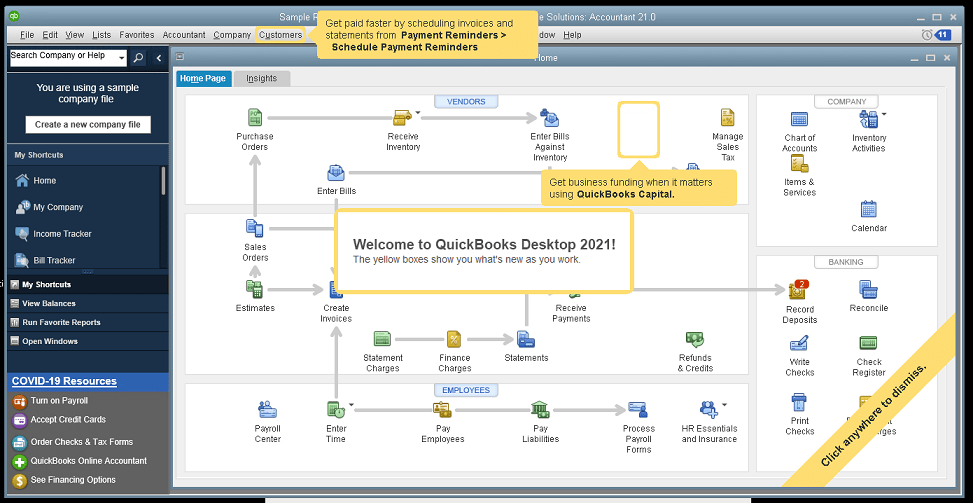
The new QuickBooks Desktop 2021 editions have new and improved features that help businesses get paid faster and secure data more effectively, making the software work even better for your company.

Many of the improvements center on automation and workflow, enabling users to get more done with fewer keystrokes and setting up automatic activities so that items don’t have to be handled manually.

Other improvements center on data and information access, allowing admins to get granular with setting user permissions and access to certain types of information, even down to the record.

Intuit has also delivered several enhancements to existing functionality in QuickBooks desktop, especially in the Enterprise edition and where inventory is involved.

Here is a brief summary of the main changes or additions introduced with QuickBooks 2021 editions.

Improved Bank Feeds
Review bank transactions and match them to existing ones in your books or quickly add new transactions using the advanced bank feeds capability. You can automatically categorize or batch-edit bank transactions by payees, accounts and classes. This can dramatically reduce the time and complexity of reconciling entered transactions with the items the bank processes.

Automated Payment Reminders and Statements
Now you can send statements automatically to customers, with each statement tailored to the customer’s needs or preferences. Set automatic reminders for customers when their invoices are due and schedule statements for your customers to let them know when they have invoices they still need to pay you for. Timely communications with customers regarding their invoices and activity is more likely to keep a customer coming back for more. It also reduces the time required to communicate individually with customers, making AR management and collection activities more efficient.

Customized Payment Receipts
Want to send certain customers a customized message on their receipts? You can use custom templates for forms like invoices, sales receipts, estimates, statements, and purchase orders so each form has the right look and information. Then use the new customer groups capability to get the right form for the right customer every time.

PDF preview
It is always a good idea to preview a document before you send it via email, but that wasn’t always a convenient thing to do in QuickBooks. Now QuickBooks lets you automatically preview attachments before emailing them to customers. You can even preview multiple attachments at once without having to manually open each one outside of QuickBooks, saving huge time and effort and smoothing out a previously-clunky workflow.

Receipt Management
Receipt management in QuickBooks desktop is a new feature that makes entering expense receipts easier and faster. You can give users access to upload expense receipts to QuickBooks using the mobile app or directly from your computer. Automate creating categorized receipt expense entries using the QuickBooks Desktop Mobile App, an option available only with the Plus subscriptions (not the one-time purchase option).

Create Customer Groups
Improve customer communication with rule-based customer groups based on fields like customer type, location, or balance. Creating customer groups allows you to find all customers that match certain criteria. Then you can create automated statements, send payment reminders or create mailing lists for specific groups of customers.
In QuickBooks Desktop Enterprise, you can even use customer groups to define permissions and access at customer and vendor group level.

Data Level Permission
Data level permissions is a new feature in QuickBooks Enterprise 21.0 that gives you more control regarding restricting access for users and roles. This makes it so the admin can create users and roles with access permissions all the way down to the record level for customers and vendors.

With data level permissions you can improve security and confidentiality of information by assigning users access only to the specific data, transactions and reports that they are responsible for. Users will only be able view, edit, or delete specific customers, vendors, or data with the permissions you delegate to them.

NOTE: Data level permissions don’t appear to be available in QuickBooks Enterprise Accountant, nor are they available with a Silver or Gold subscription. To get this feature, you have to go Platinum or Diamond, so it’ll cost you.

Add prices to barcode labels
Wouldn’t it be great if you could print barcode labels with pricing information as well as the item name and description? Now you can! Barcode labels help you accurately identify and manage inventory, providing the information most often needed by employees and customers.

Landed cost
Gain more control and flexibility over how you calculate and share landed inventory costs. Set up landed cost accounts as “COGS” (Cost of Goods sold) or “Other current assets”, and accurately calculate landed cost for old item bills from closed accounting periods. You can also print bills with or without landed cost, allowing you to better control the information you present.

Alternate vendor reports
Key inventory reports can now include alternate vendor information, improving visibility into vendor information on inventory stock status by item, inventory valuation summary and other reports. Linking to alternate vendors via these reports simplifies and streamlines the process of reordering from alternate vendors.

QuickBooks desktop software continues to be the cornerstone of small business accounting. From very small business to the growing enterprise, QuickBooks delivers the functionality that every company needs to manage their income and outgo, customers and vendors, and all their banking activities.

Starting with the early 1999 version to the current 2021 release, Intuit has continued to add capability and enhance features and usability to keep QuickBooks as the most popular small business accounting product on the market. Remember the motto “if you can write a check, you can do your own books“? That’s QuickBooks.

jm bunny feetMake Sense?

J

Update your Mac to keep getting Office application updates

Microsoft’s upcoming November 2020 update has some direct impacts to users running macOS, especially if running macOS 10.31 or earlier. As of November 10, 2020, existing Microsoft 365 for Mac users running macOS 10.13 or earlier will not receive any further Office application updates. If the machine is upgraded to macOS10.14 or later, updates will be allowed to proceed on that computer.

With the Microsoft 365 for Mac November 2020 update, users running macOS must be running 10.14 Mojave or later in order to continue to receive updates for Office applications, and any new installs of Microsoft 365 for Mac will require macOS 10.14 or later.

Word, Excel, PowerPoint, Outlook and OneNote are the applications included which will no longer receive updates – including security updates – if the macOS they’re running on is too outdated.

Among the benefits of using Microsoft 365 is that the software is always kept up to date, including enhancements and new features as well as security and safety updates that help keep the software (and the associated data) more secure. You may continue with the older version of macOS, and your Office applications will continue to work. But losing out on updates not only keeps you from benefitting from the most current capabilities of the software (and getting full value from your subscription), but it also puts your security and compliance at risk.

Microsoft 365 applications are continuously updated with new features, connected services and enhancements to security. Modern operating system platforms are necessary to support some of these improvements, requiring users to update their computer operating systems as well as the applications running on them. With the Microsoft 365 November update, Mac users need to be running one of the three most recent versions of macOS to keep their Office applications recent, too.

Make Sense?

J

Office 2013 Loses Support for Commercial Office 365 Services

If you’re not on a subscription for your Office desktop applications, you may lose access to your email box and other services.  Why? Because Microsoft announced that, effective October 13th, 2020, Office 365 services (like OneDrive, Hosted Exchange and more) will only support client connectivity from subscription clients or perpetual clients with mainstream support.

Basically this means that Office 2013 is about to be no fun any more.

You won’t be able to use Office 2013 Outlook to connect to your Microsoft-hosted Exchange mailbox, and your Word and Excel won’t connect to OneDrive.  If you are with a hosting provider who supplies your Office licenses as part of the service, cross your fingers and hope that it isn’t Office 2013. It will be pretty frustrating if your Outlook suddenly has problems accessing your Microsoft-hosted mailbox.

Like many other products, a lot of the functionality in the desktop software has been turned into web service and the Microsoft Office applications are a great example. With cloud connectivity being the focus, desktop solutions are more frequently leveraging online resources to extend and expand their capabilities. This also means they’re more frequently turning from one-time software purchases to subscription service.

After October, Microsoft’s ongoing investments in the Office 365 cloud services – including Exchange Online, SharePoint Online, and OneDrive for Business – will be made based on “post-Office 2013 requirements”.  Now is the time to migrate your Office 2013 to Microsoft 365 Apps (formerly Office 365 ProPlus). We highly recommend this move anyway, so businesses can take advantage of using their Office applications seamlessly on Azure servers as well as their local PC desktops and mobile devices.

Users of Office 2016 and Office 2019 have a little more time before their software no longer supports the cloud services. That end date is currently October 2023. You can find the support lifecycle site for Office mainstream support dates here.

It isn’t that Microsoft plans to actively block older Office clients from connecting to Office 365 services. It’s just that older applications may have performance or reliability issues when they try to connect to the constantly-updated cloud services.  Increased security risks are certain and users may even find that they are no longer compliant with certain requirements. The big thing is that Microsoft support will likely not be able to resolve issues related to unsupported connections.

The days of buying software once and running it forever are just about over.

Developers have recognized that cloud services can expand and enhance their solutions in ways that static local installation can’t. For many businesses, it becomes easier and ultimately more efficient to migrate to subscription service for IT platform and software. Azure cloud servers, for example, allow businesses to always have modern infrastructure that is more fault tolerant and agile than on-premises hardware.

Combing these benefits with software that is cloud-connected and always up to date means the business never faces lost productivity or revenues due to outdated systems or lost compatibility with newer solutions.

Make Sense?

J

Windows Server 2012/R2 Not Aging Well, Loses Support for Microsoft 365 Apps

Lots of people loved (and continue to love and use) Windows Server 2012/R2. This Windows Server release introduced several new and improved features that made it a cornerstone of business and service provider networks worldwide. Notable improvements in virtualization with Hyper-V, along with improvements in storage, networking, remote access and server administration features, made 2012/R2 a necessary upgrade from the 2003 and 2008 versions still present in many networks.

Sadly, even though Release 2 (R2) for Server 2012 was largely a new OS due to its features and capabilities, it did not receive a new lifecycle end date and instead inherited the end dates for 2012 version. And an extended lifecycle end-date doesn’t guarantee extended usefulness or compatibility.

Windows Server 2012 began with mainstream support on October 30, 2012 and that mainstream support ended in January 2018, including for R2. Extended support for 2012/R2 goes through January 2023, but that is only if you are paying for Software Assurance for your licenses.

During this period where extended support may still be available for the OS, there is no guarantee that it will remain as a supported platform for your application software. An example of this is the Microsoft Office 365 Apps suite formerly known as ProPlus. The Office 365 apps, which include Outlook, Word, Excel, Powerpoint and more, are staples of business users worldwide. These applications are no longer supported on Windows Server 2012/R2.

Microsoft 365 Apps ended support on Windows Server 2012/R2 on January 14, 2020.

Innovative features and functionality continues to be released for the Microsoft 365 Apps and Microsoft needs to know that the platforms running the applications will work properly with those innovations. As the software is improved and new capabilities introduced, stability and performance issues can plague the install when it is running on older or unsupported operating systems.

Microsoft has pointed out that any Microsoft 365 Apps updated to version 2005 or later will result with functionality and stability problems because there are changes that are specifically not compatible with Windows 8 and Windows Server 2012.

The pace of change is increasing no matter what industry you are in. With technology adoption rates rising faster than ever in all sectors, business owners cannot rely upon outdated systems if their operations are to remain competitive. Application software as well as the operating system platforms it runs on must be regularly updated in order to provide the reliable performance and useful functionality demanded by today’s business users.

jmbunnyfeetMake Sense?

J