
Deadline Approaching for QuickBooks Desktop Users

All QuickBooks Desktop Users Are Required to Upgrade to a Current Subscription Model by Sep 30. Yes, the time has come to buy in to the software subscription model or lose access to your books. But at least you get to keep using QuickBooks desktop software, which is worth a lot of you’re already invested in QuickBooks.

Effective Sep 30, 2024, all existing users of QuickBooks Desktop Pro, Premier, Mac, and Enterprise Solutions v21 (and earlier) must transition to the annual subscription model. For Pro and Premier users, this is a short reprieve. Previously Intuit had announced a July deadline for renewing Pro/Premier licenses. After the now-September deadline, there won’t be any new sales of Pro or Premier licenses. With some of the recent price increases it almost becomes a moot point, as QB Enterprise is now priced similarly (less?) than Premier.

Something notable in all of this is that versions sold under non-subscription one-time licenses will be discontinued entirely. That is just fine for many users, however, as the much older versions don’t “phone home” to authorize the license, so they can keep working. The downside to that is vulnerability. Outdated and unpatched software is more vulnerable to risk than software that is actively updated to protect against various exploits. Best practices demand keeping software updated and patched. Being out of support with your business financial and accounting software is not a position you want to find yourself in.

Starting Oct 1, 2024, QuickBooks Enterprise will be the only QuickBooks Desktop version available for new purchases. For very small businesses, this is going to be a challenge as QB Enterprise is not as affordable as Pro was. These businesses may find that QuickBooks Online works for them, but they will not only miss out on a great deal of QB Desktop functionality that is not present in Online, but they will also be locked into the QuickBooks Online service model of receiving product updates without announcement, not having a backup of your company data, getting bombarded with a revolving door of add-on apps, and having literally no control whatsoever of where your data lives and how Intuit and its companies are accessing it.

If you are using an older version of QuickBooks Desktop, upgrading to the subscription model before the deadline is crucial to avoid any interruption of services.

What does this mean?

  1. Service Discontinuation:
    Failure to upgrade will result in the discontinuation of services such as QuickBooks Desktop Payroll, Payments, Online Backup, online banking, system updates, security patches, and live support. This could potentially disrupt your business operations.
  2. Immediate Action Needed:
    To ensure uninterrupted business operations, we strongly recommend planning your upgrade without delay.
  3. Advantages of Upgrading:
    Intuit encourages existing Desktop subscribers to upgrade to the current version (Desktop 2024) to benefit from the latest features, improvements, security updates, and bug fixes. Updated software also improves compatibility with current versions of Windows, Microsoft Office applications, Gmail services and other solutions that use modern methods of account protection and authentication.

At that time, you may also want to consider your alternatives to how and where you run your QuickBooks Desktop software.

Intuit offers “cloud access” with their QuickBooks Enterprise licensing, but this option is not your only or best option for running your QuickBooks Desktop/Enterprise software in the cloud.

With the bad guys (hackers) and malware being as prevalent as they are, businesses must be vigilant in securing their business and financial information. Shared hosting platforms where service providers allow many users from many businesses to operate on the same servers simply cannot provide the level of security or protection most businesses need.

Noobeh QBonAzure offers some limited shared hosting, but only for customers that have limited requirements and only for a few users. When a company needs more than just “vanilla” hosting for their valuable financial data, we strongly recommend going the private route and having your own cloud server.

Not just a “dedicated” server in a service provider’s network, Noobeh works only in the private Microsoft account of each customer, ensuring that there is absolutely no sharing of any resources with other customers. This allows us to build a system that works specifically for your business, with all the applications and services needed to support all aspects of operation. There aren’t different levels of service or service packages; each system is built and sized for the customer’s unique requirements, and we don’t charge per-application or silly things like that. You need what you need to run your business, and we host that.

Connect with us if you have any questions or need assistance during this transition. We will help you navigate the changes and understand how best to proceed for your business and circumstances, engaging with the right products and services to ensure continuity and set you up for greater future success.

jm bunny feetMake Sense?

J

Accounting for Point of Sale

Accounting for Point of Sale

There are a lot of solutions available to help retail businesses get business done.  From touch screen technology to mobile credit card and payment processing, retailers have many choices when it comes to selecting the right technology for the establishment.  But even the best point of sale system can lack the critical element that makes it truly valuable for the business.  This critical element is integration to a trusted accounting and finance solution.  While the POS system may include a level of basic accounting functionality, the reality is that a dedicated financial application will perform better in the long run.

Just as specialized line of business applications are used to handle operational functions, the financial application should be considered to be the “line of business” solution for the accounting and finance department (even if it is a department of one). This system not only services essential processes like receivables management, bill payments and bank account reconciliation, it serves as the basis for payroll, financial, tax, performance and other reporting. Further, the financial systems are often the first and primary source of analytical data, illuminating KPIs and cash flows and ultimately the business value.

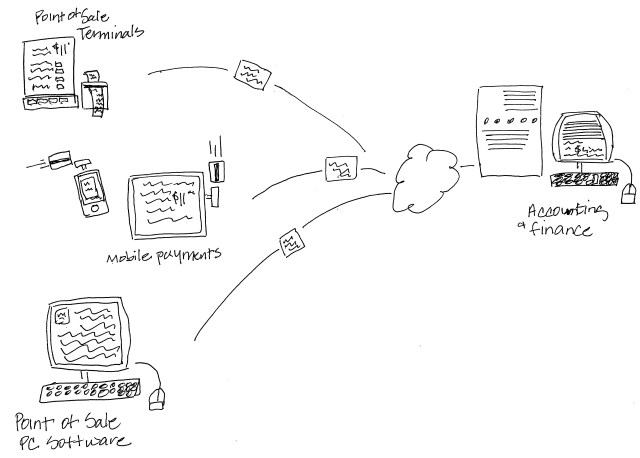
The point of sale application generally handles the selling of and payment processing for goods and services sold by the business.  Whether it is composed of registers and terminals connected to a host system, PCs running POS software, or mobile phones and tablets running mobile payment processing apps like Square or GoPayment, point of sale addresses the retailers need to capture and record sales and payment information, sometimes customer information, and often inventory information.

The data from the POS solution must make it to accounting in some manner, yet point of sale applications are too-often approached as a standalone business requirement, somehow disconnected from other aspects of the business including the back-office.  Sales and items may be recorded in the POS system, yet only summary sales data ends up being re-keyed into the accounting system.  Centralized inventory management is all but nonexistent in these cases, and gross sales total are often recorded rather than individual transactions and receipts being transmitted to the accounting system.  The process of re-keying information from the POS to accounting systems is not only an efficiency-killer, it is also introduces a great potential for errors.  When the business elects to conserve on data entry and post only summary information to the accounting system, valuable detailed sales and transaction data may be lost.

The right approach to bringing point of sale together with accounting is to automate the process of integrating POS data with accounting on a regular basis – with AUTOMATION being the key.  Rather than establishing a process that requires manual entry of information from either system, a data integration solution is the best approach, with an import/export solution running second. The point is the elimination of manual re-entry of information.

There are numerous tools available that can take formatted POS data and import it into products like QuickBooks, for example, where it can be properly accounted for.  While QuickBooks Point of Sale integrates with QuickBooks desktop products, other POS solutions can also connect with QuickBooks if the right integration tool is selected, and there are quite a few available.  Check with the POS vendor and ask about a direct integration with QuickBooks desktop or whatever financial system you use. If there isn’t a packaged integration solution available, then check out products like Transaction Pro Importer, which can automate a variety of data import processes and ease the burdens moving external data into QuickBooks.pointofsale

The other factor in getting point of sale data to accounting is actually getting it there… transporting the data from the POS location to where the accounting system lives.  In many situations it is not desirable to keep the accounting system on the same computers as the point of sale systems, and in some cases it isn’t even possible.  But there is generally a way to get the information in a form that makes it possible to transmit it in some manner.  Among the most popular approaches to solving the “getting the POS data from here to there” problem is to use a data sync solution like Dropbox.

If the point of sale data can be exported or output to a file on a PC hard drive, then it may be able to be stored in a Dropbox folder on that PC.  At the home office where the accounting system resides, the operator would access the sync’d files from the local PC Dropbox folder and import the data to QuickBooks.   For QuickBooks Point of Sale there is an option to create a “mailbag” of sorts from the POS data of a remote store, which QuickBooks POS at the home office would pick up from the Dropbox folder and push to the QuickBooks financial application.

For businesses using POS systems like Micros or POSitouch and others, there is likely a service or application that will produce the POS data for import to QuickBooks or other financial system, pulling POS data files placed in the Dropbox folders by the POS app or performing the function as a web service or SaaS integration.

While I am a big fan of application hosting services and running QuickBooks desktop editions in the cloud, I’m also a realist and recognize that many POS solutions either can’t or shouldn’t be hosted.  There are situations where a hosted point-of-sale makes a lot of sense, and then there are cases where no bandwidth or proprietary hardware-based solutions make hosting not even an option. That doesn’t mean that the financial systems shouldn’t be hosted, though, and there are numerous ways to get the sync’d POS exports to the hosted QuickBooks environment, for example.

The key for retailers is to make sure there is a solid process for getting detailed and accurate POS information into the accounting system on a regular basis.  Manual entry is never the best answer.  With all of the technology and tools available, manually re-entering sales information is a waste of time and is likely to produce errors.  The better answer is to use an approach that automates the regular collection of point-of-sale data from all sources, delivering the data in a regular and consistent manner to accounting, and providing the basis for end-to-end automation supporting the integration of the point of sale system data with the rest of the business accounting.

jmbunnyfeetMake Sense?

J

QuickBooks and Dropbox? Yeah… no.

mobile cloud dataHaving your data available from anywhere is awesome.  Storing files in the cloud and being able to sync them with files on the computer is a great way to make sure the files are centrally available regardless of which machine you use to access them with.  Dropbox is among those favored solutions which provide users with the cloud drive storage and an ability to seamlessly sync those files to various computers.  It’s pretty cool, but let’s face it: not every type of file loves living in a Dropbox or sync folder.  Particularly for folks who want to be able to store and sync their QuickBooks and other business files to the cloud, there are a few things to be aware of when using these nifty sync solutions.

A file is not always just a file.  What do I mean by this?  Well, there are lots of different types of files an application might store and use, and not all of them work the same way.  For example, Word documents are files that only one person can actually work on at a time – there’s no actual “multi-user” functionality when it comes to a Word doc.  You either get the file in a state that allows you to make changes to it, or you get it in ready-only mode.  Document files like this – Word docs, Excel spreadsheets, PDFs and text files – work great with sync solutions. This is because the type of file being sync’d is designed to allow only one person at a time to have it open and editable.  You sync it to your computer, work on the file, and then sync it back.  It’s pretty straightforward.

The file that isn’t just a file is a database – a file or series of files that make up a complete data set, and which have some type of database manager or other framework keeping track of things.  It’s this type of solution that often has problems working in a sync folder or system.  An Outlook data file (a .PST file) is a type of file which fits into this category.  While the Outlook file isn’t generally viewed as a multi-user data file or a database file, it is being communicated with and written to by various processes while the application is running.  There is information being added to the file as emails are received, even while the user may be writing an email or entering a calendar appointment.  The point is that there are multiple types of data elements being updated all the time and by various processes.  This type of file is always in use and getting changes, so there really isn’t a point in time when it’s closed and available to make copies of, which is what has to happen for a proper sync.    And, because the sync solutions often try to sync incremental file changes, there is a big possibility of ending up with a damaged file because some changes were properly written where others might not be, ending up with file conflicts and corrupt data.

A QuickBooks company file is also a database file, so the same issues around syncing an Outlook data file exist with QuickBooks.  When the QuickBooks software is open and a company file is being worked on, the file may get incremental changes throughout the work session.  As each of these little changes happens, the sync program may attempt to copy those changes to the file in the cloud.  Because the QuickBooks file is constantly being updated, the attempt to incrementally sync updates to the file in the cloud can easily cause damage and corruption to the file.  Folks who have attempted to fake a sort of multi-user access to QuickBooks data files by using Dropbox or other sync services quickly find that the system isn’t going to work for them that way.  Further, they often find that the QuickBooks data files can get pretty screwed up trying to manage the live company file in this manner.


The only way to use QuickBooks, Outlook and similar types of data files with Dropbox is to recognize that the sync folders are only viable as a backup storage location for the files, not the place where the actual, working data files can be stored.  If using an application such as QuickBooks, businesses should store the “working copy” of the file in the documents area on the machine, and then backup or copy the data file to the sync folder periodically.  Placing the backup files or file copies in the sync folder allows them to sync to the cloud, storing them as offsite backups in case you need them, and allows the file to remain where it can be used by the application.

Businesses who need access to QuickBooks applications and data from different computers or locations may want to consider checking out hosting services as an alternative to a sync solution. Hosting solutions can help businesses get their software and data available anytime, anywhere either from their own PC or from a secure environment so they can access their QuickBooks applications and data from any Internet-connected device.

When a company wants to keep backup copies of their information in the cloud, a sync service might be an okay solution.  For folks who need to be able to access a live file and applications from a variety of locations, or if multi-user access is required (especially if those users are in different locations), then a full hosted solution might be the better answer.  Hosting the applications and data in the cloud is a great way to get the company connected, and it’s a far better alternative to pretending the system can be multi-user when it really can’t.

jmbunnyfeetMake Sense?

J

Better QuickBooks Access, Management and Security – QuickBooks Licensing and Hosting Models

Whether hosted in-house or offsite, licensing models for hosting QuickBooks can be very confusing.

driving1-ANIMATIONThe demand for solutions to address user mobility, better collaboration and improved information security is increasing as connectivity improves and cloud services and threats evolve. Server-based computing models and application hosting are increasingly popular as businesses seek to embrace teleworking and telecommuting models for their entrenched applications and systems, creating a foundation for improved productivity and work/life balancing (or integration).  On the technical side, the benefits of centralizing applications and data include improved efficiency in managing, maintaining and securing systems. For many small businesses, this means centralizing the installation and maintenance of core business applications like Intuit QuickBooks Pro, Premier or Enterprise.
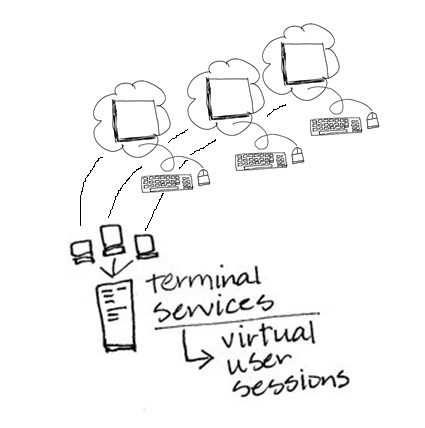
Whether it be offsite with a commercial hosting provider or on a co-located server somewhere, or an onsite installation on the in-house server, hosting Intuit QuickBooks licenses can be straightforward or complicated depending on what you are trying to do with them. Because QuickBooks was designed as a standalone single-user application, there are a number of challenges when it comes to preparing it for server-based use.  The primary issue is often simply understanding the QuickBooks licensing model, which is not particularly INTUITive (sorry).

Licensing hosted QuickBooks applications comes with two different sets of implementation issues: the technical implementation (the installation and setup) and the logical allocation of licenses to users (the licensing rules).

When it comes to the technical implementation, many an experienced engineer has beaten their head against the wall trying to get QuickBooks to work properly in a workspace or session-based system (e.g., terminal server), all because they expect the product to implement like a “normal” client/server application. While QuickBooks may use the Sybase database manager guts to handle multi-user access to QuickBooks data files (I think it is still Sybase), the architecture required to properly service a networked QuickBooks installation does not necessarily mimic what would be used with, for example, a .NET desktop client application with an MS SQL back-end.   First, the QuickBooks data files cannot be remote to the application, meaning that both the client and the database manager (which is actually working as an adjunct to the client) must exist on the local network; it will not work over a WAN connection, which is why so many folks get frustrated when they put their server “in the cloud” and attempt to connect from a local client using a VPN.  It just won’t work that way with QuickBooks; it all has to be on the local network – client, server, data… all of it.

It is notable that many businesses use Dropbox and other file sync solutions because they want to be able to get to their data from multiple locations, but the data they’re getting must be “local” to the apps that use it.  It doesn’t allow for simultaneous multi-user access, but it can be an effective way to share a file.  The caveat is that the file (at least in the case of a QuickBooks file, or Outlook PST file, etc.) should not actually be used from the sync folder.  Sync folder should contain copies of data files that users wish to sync or share with other devices.  But I digress…

With a server-based implementation of QuickBooks, technicians will install the QuickBooks desktop software on the server, and will determine whether or not that same machine will also handle the company data files.  The QuickBooks DB manager is part of the installation of QuickBooks, and the file system and drive where the QB files are to be managed must be recognized as a local drive on the server running the QBDB manager.  The overhead used by the database manager isn’t huge, but it can impact the performance of users on the server.  For this reason, some techs will decide to implement a separate file server to manage the QB data files, taking that load off the app server.

  • The QuickBooks software uses the database manager to “host” access to company files.  This simply means that a single server with the data on it is providing managed access to remote-desktop-sessionsQuickBooks application users.
  • When QuickBooks application software and data is installed and centrally managed on a server (instead of QuickBooks being installed on individual PCs), that means QuickBooks application is being “hosted” on that server.
  • When a 3rd party provider supplies the server, the QuickBooks installation, data storage, and your way of connecting to it all,  that provider is a “host” providing hosting services for your QuickBooks.

In a dedicated hosting environment, the data is often stored on the same server as the applications, whereas in a shared hosting environment, the data is often stored on central file servers which serve multiple customers. This is why, in some shared hosting situations, one bad data file can take down the database manager services for all the customers using that same file server.

Users open the QuickBooks application on the server instead of having the application installed on individual PCs.  The single server-based installation of the software is able to be used concurrently by all users logging in to that computer. With the database manager running, the file is essentially “hosted” on that machine, and the file may then be opened in multi-user mode.  OK so far.  The problem generally comes about when a second user on the same computer/server wants to open the same QB data file as the first user.

Because the QB database manager is looking at the license of the client application accessing the data file, it will recognize when two different users/sessions with the same license key attempt to open the company data file.  If that license key is a single-user key, then the database manager knows it should allow only 1 concurrent user in the file.  QuickBooks doesn’t get installed for each user on a computer or server; it is installed one time on the machine and each user on that machine runs from that single shared installation. Any particular version of the QuickBooks application may be installed only once on a single computer, but it is possible to install multiple editions, year versions, and “flavors” of QuickBooks on a single machine (cannot be more than one installation of each unique product). There will be more than a few annoyances when running a variety of QBs on the same computer, but it is technically possible.

In order to allow multiple users to simultaneously access the same data file from a central installation of QuickBooks, the license key installed on the computer must be a multi-user key.  QuickBooks Pro, for example, can be keyed to 3 concurrent users, meaning that the license will allow up to 3 users with that same license key to simultaneously access the same company file.  Technically (but not lawfully) this installation of QuickBooks on the machine could allow a virtually unlimited number of users to launch the QuickBooks application simultaneously, limited only by machine resources.  This is where the logical allocation of licensing comes in.. the rule of licensing QuickBooks.

The logical allocation of unique licenses for each QuickBooks user is a little easier to understand than the technical implementation.  The rule is simply that each user of QuickBooks is required to have a valid registered/activated license. That valid license is a license purchased and activated for that business.

total-businessMaking QuickBooks desktop editions more useful by adding secure remote access and centralized management makes a lot of sense.  For companies who rely on the functionality and features of the desktop products (QuickBooks Pro, Premier and Enterprise), a hosted approach is the only way to really address mobility and multi-location requirements.  Remember that hosting doesn’t necessarily mean offsite, although that could make sense for the business, too.

Centrally-managing QuickBooks applications and data creates greater efficiency and improves overall IT management capability for the business.  At the same time, a centralized model introduces a better strategy for mobilizing the workforce and connecting remote users and offices. The struggles of understanding and implementing proper QuickBooks licensing begin to seem very small when compared to the benefits of deploying a centralized system that’s easier to access, manage and secure.

Make sense?

J