

 Having your data available from anywhere is awesome. Storing files in the cloud and being able to sync them with files on the computer is a great way to make sure the files are centrally available regardless of which machine you use to access them with. Dropbox is among those favored solutions which provide users with the cloud drive storage and an ability to seamlessly sync those files to various computers. It’s pretty cool, but let’s face it: not every type of file loves living in a Dropbox or sync folder. Particularly for folks who want to be able to store and sync their QuickBooks and other business files to the cloud, there are a few things to be aware of when using these nifty sync solutions.
A file is not always just a file. What do I mean by this? Well, there are lots of different types of files an application might store and use, and not all of them work the same way. For example, Word documents are files that only one person can actually work on at a time – there’s no actual “multi-user” functionality when it comes to a Word doc. You either get the file in a state that allows you to make changes to it, or you get it in ready-only mode. Document files like this – Word docs, Excel spreadsheets, PDFs and text files – work great with sync solutions. This is because the type of file being sync’d is designed to allow only one person at a time to have it open and editable. You sync it to your computer, work on the file, and then sync it back. It’s pretty straightforward.
The file that isn’t just a file is a database – a file or series of files that make up a complete data set, and which have some type of database manager or other framework keeping track of things. It’s this type of solution that often has problems working in a sync folder or system. An Outlook data file (a .PST file) is a type of file which fits into this category. While the Outlook file isn’t generally viewed as a multi-user data file or a database file, it is being communicated with and written to by various processes while the application is running. There is information being added to the file as emails are received, even while the user may be writing an email or entering a calendar appointment. The point is that there are multiple types of data elements being updated all the time and by various processes. This type of file is always in use and getting changes, so there really isn’t a point in time when it’s closed and available to make copies of, which is what has to happen for a proper sync. And, because the sync solutions often try to sync incremental file changes, there is a big possibility of ending up with a damaged file because some changes were properly written where others might not be, ending up with file conflicts and corrupt data.
A QuickBooks company file is also a database file, so the same issues around syncing an Outlook data file exist with QuickBooks. When the QuickBooks software is open and a company file is being worked on, the file may get incremental changes throughout the work session. As each of these little changes happens, the sync program may attempt to copy those changes to the file in the cloud. Because the QuickBooks file is constantly being updated, the attempt to incrementally sync updates to the file in the cloud can easily cause damage and corruption to the file. Folks who have attempted to fake a sort of multi-user access to QuickBooks data files by using Dropbox or other sync services quickly find that the system isn’t going to work for them that way. Further, they often find that the QuickBooks data files can get pretty screwed up trying to manage the live company file in this manner.
The only way to use QuickBooks, Outlook and similar types of data files with Dropbox is to recognize that the sync folders are only viable as a backup storage location for the files, not the place where the actual, working data files can be stored. If using an application such as QuickBooks, businesses should store the “working copy” of the file in the documents area on the machine, and then backup or copy the data file to the sync folder periodically. Placing the backup files or file copies in the sync folder allows them to sync to the cloud, storing them as offsite backups in case you need them, and allows the file to remain where it can be used by the application.
Businesses who need access to QuickBooks applications and data from different computers or locations may want to consider checking out hosting services as an alternative to a sync solution. Hosting solutions can help businesses get their software and data available anytime, anywhere either from their own PC or from a secure environment so they can access their QuickBooks applications and data from any Internet-connected device.
When a company wants to keep backup copies of their information in the cloud, a sync service might be an okay solution. For folks who need to be able to access a live file and applications from a variety of locations, or if multi-user access is required (especially if those users are in different locations), then a full hosted solution might be the better answer. Hosting the applications and data in the cloud is a great way to get the company connected, and it’s a far better alternative to pretending the system can be multi-user when it really can’t.
 Make Sense?
J

 The demand for solutions to address user mobility, better collaboration and improved information security is increasing as connectivity improves and cloud services and threats evolve. Server-based computing models and application hosting are increasingly popular as businesses seek to embrace teleworking and telecommuting models for their entrenched applications and systems, creating a foundation for improved productivity and work/life balancing (or integration). On the technical side, the benefits of centralizing applications and data include improved efficiency in managing, maintaining and securing systems. For many small businesses, this means centralizing the installation and maintenance of core business applications like Intuit QuickBooks Pro, Premier or Enterprise.
 QuickBooks application users.
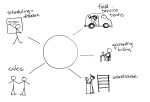 Making QuickBooks desktop editions more useful by adding secure remote access and centralized management makes a lot of sense. For companies who rely on the functionality and features of the desktop products (QuickBooks Pro, Premier and Enterprise), a hosted approach is the only way to really address mobility and multi-location requirements. Remember that hosting doesn’t necessarily mean offsite, although that could make sense for the business, too.

 Cooper Mann Consulting